

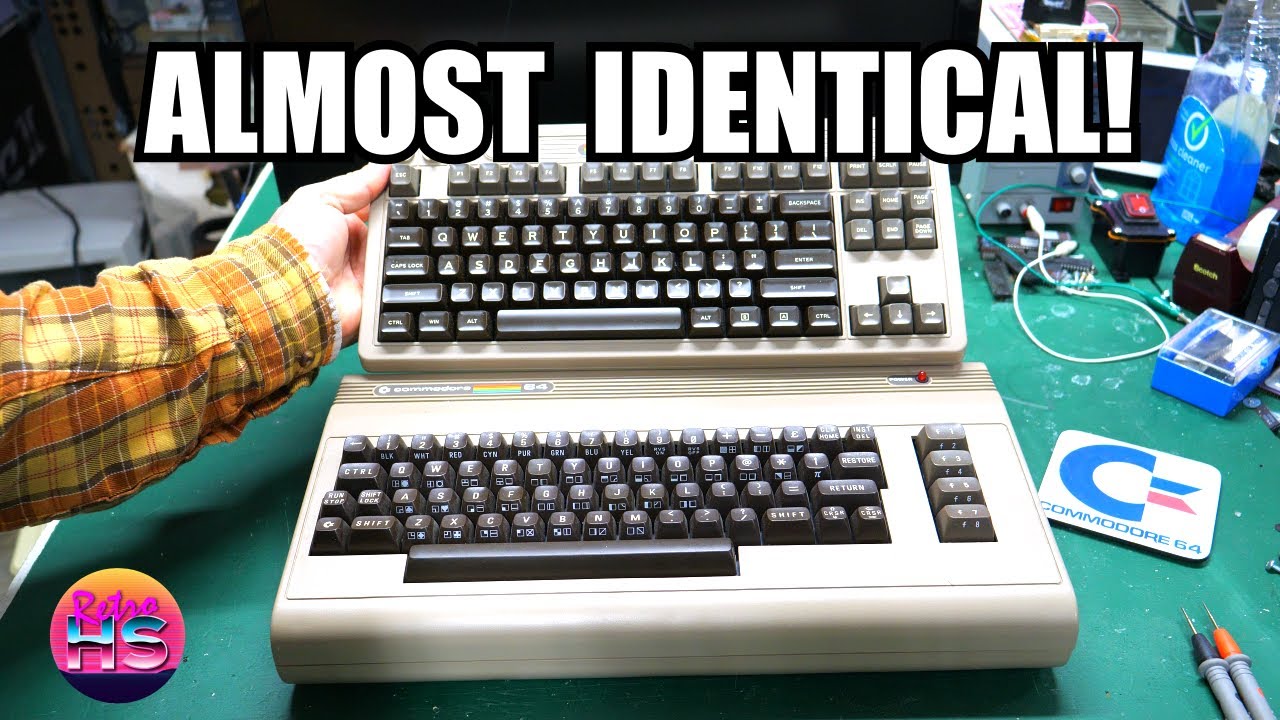
There was something immediately charming about seeing a brand-new keyboard try so hard to channel the spirit of a 1982 Commodore 64. In this video, I took a close look at the 8BitDo C64-style retro mechanical keyboard and treated it less like a novelty desk accessory and more like a serious piece of retro-inspired hardware. What made it interesting wasn’t just the color scheme or the familiar breadbin aesthetic, but how many small design choices tried to recreate the feel of a real Commodore setup while still functioning as a modern USB and wireless keyboard. The real fun started when I paired it with a Raspberry Pi Zero running BMC64, because that turned the keyboard from a stylish homage into a compact, practical way to spin up a portable C64 environment with surprisingly little effort.
Once I got into the box, I spent time looking over exactly what 8BitDo included and how closely the presentation matched the retro theme. The keyboard itself clearly borrowed the visual language of the Commodore 64, from the case color to the keycap styling, but it was also unmistakably a modern mechanical keyboard once I started handling it. I checked out the build quality, key feel, and overall finish, and the clicky switches stood out right away as a major part of the experience. They gave it a much more deliberate and tactile feel than a lot of generic modern keyboards, even if they weren’t trying to reproduce the exact mechanism of an original C64. I also went over the connectivity and hardware details, showing how it supported modern usage while still selling the retro illusion. That combination of nostalgia and practicality is really the point of the unboxing: this wasn’t just a display piece, and it wasn’t pretending to be a perfect one-to-one replica either. It was a thoughtfully designed modern keyboard that happened to wear Commodore-inspired clothing very convincingly.

The extra controls was where the keyboard started separating itself from a typical retro-themed peripheral. I showed off the additional buttons and joystick-related accessories that came with it, and those details made it feel much more tailored to old computer and gaming use than a standard mechanical keyboard would have. Instead of stopping at the visual styling, 8BitDo had included controls that nodded directly to the way people actually interacted with systems like the C64. I looked at how those add-on inputs were laid out, how they connected, and what kind of functionality they offered in practice. This was one of those areas where the keyboard felt playful but also genuinely useful, especially for anyone wanting quick access to game-related inputs without reaching for a separate device. At the same time, there were some quirks worth knowing about, because once you move beyond ordinary typing and into custom buttons and retro-style control schemes, setup and behavior matter a lot more than appearance.

The most technically interesting part came when I hooked the keyboard up to a Raspberry Pi Zero running BMC64 and used it as the foundation for a compact emulated Commodore 64. That was where the whole concept really came together. BMC64 was already a great option for people who wanted a fast-booting, appliance-like Commodore experience on Raspberry Pi hardware, and pairing it with this keyboard made the setup feel far more cohesive than using a random USB keyboard ever would have. I walked through getting it connected and demonstrated how the combination worked in practice, including testing BASIC input and checking whether the overall experience felt natural. That part mattered, because a keyboard like this either lives or dies by whether it can make emulation feel less like a workaround and more like a purpose-built machine. I also covered some of the quirks that showed up along the way, since modern keyboard layouts and emulated vintage systems don’t always line up perfectly. Those little mismatches were exactly the kind of thing enthusiasts needed to know before trying to build their own mini C64 around the same idea.

After that, I moved on to actually using the setup for what most people would want it for: loading up a game and seeing whether the illusion held together once things got interactive. This was where the keyboard stopped being an object to inspect and started becoming part of a complete retro computing experience. I tested gameplay on the BMC64 setup and got a feel for how practical it was to use the keyboard and its extra controls in a real session rather than just on the bench. That revealed the strengths of the concept pretty quickly. The compact Raspberry Pi Zero and the C64-inspired keyboard make for a neat, portable arrangement that didn’t take much to deploy, and the visual and tactile presentation helped sell the experience in a way that generic hardware just couldn’t. At the same time, any oddities in mapping, control behavior, or usability became much more obvious during actual play, so this served as a reality check as much as a demo. It showed that the setup was absolutely fun and workable, but also that there were a few caveats users would want to understand before expecting a flawless drop-in substitute for original hardware.
By the end, the big takeaway was that this keyboard wasn’t just a gimmick and it wasn’t just for display. It actually made a lot of sense as the centerpiece of a small, modern Commodore-inspired setup, especially when paired with BMC64 on a Raspberry Pi Zero. It looked the part, felt satisfying to use, and added enough thoughtful extras to make it more than a cosmetic tribute. It also had a few quirks that were worth knowing about, which made the hands-on testing all the more valuable. If you like the idea of building a quick portable C64 without dragging out original hardware, or if you are just curious how close a modern reproduction-style keyboard can get to that classic breadbin vibe, this is definitely a video worth watching all the way through.
— Aaron
Links
Timestamps
00:00 – First Look
02:04 – Unboxing
08:04 – Additional Buttons
09:27 – Emulating A C64
14:01 – Playing A Game
Leave a Reply